bls
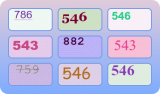
Using proxy servers is not required for this task.
In the request, 9 images must be provided in base64 format.
Additionally, the TaskArgument value must be passed inside metadata.
Request parameters
IMPORTANT: obtain base64 images directly before creating the task to avoid errors during solving (see section How to get base64).
type<string>requiredComplexImageTask
class<string>requiredrecognition
imagesBase64<array>requiredAn array of Base64-encoded images (without the data:image/png;base64, prefix).
Task (inside metadata)<string>requiredTask name: "bls_3x3"
TaskArgument (inside metadata)<string>requiredThe value of the number that must be found in the images. Example: "123"
Create task method
https://api.capmonster.cloud/createTask
Request example
{
  "clientKey": "API_KEY",
  "task":
  {
    "type": "ComplexImageTask",
    "class": "recognition",
    "imagesBase64": [
      "image1_to_base64",
      "image2_to_base64",
      "image3_to_base64",
      "image4_to_base64",
      "image5_to_base64",
      "image6_to_base64",
      "image7_to_base64",
      "image8_to_base64",
      "image9_to_base64"
    ],
    "metadata": {
      "Task": "bls_3x3",
      "TaskArgument": "123"
    }
  }
}
Example task:
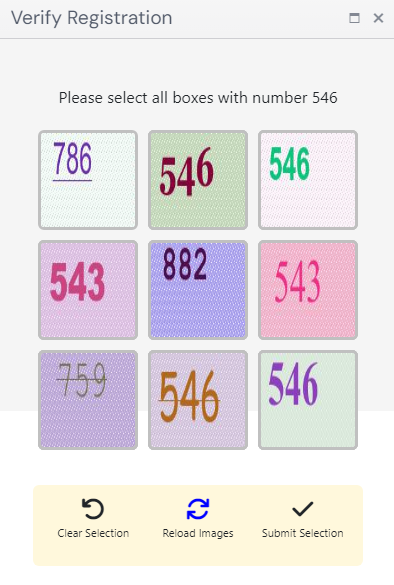
Pass images converted to base64:


For this example: "TaskArgument": "546"
Response example
{
  "errorId":0,
  "taskId":143998457
}
Get task result method
https://api.capmonster.cloud/getTaskResult
Request example
{
  "clientKey":"API_KEY",
  "taskId": 143998457
}
Response example:
An array of boolean values (true or false) depending on whether the number in each image matches the target argument.
{
  "errorId": 0,
  "status": "ready",
  "errorCode": null,
  "errorDescription": null,
  "solution": {
    "answer": [true, true, false, false, true, false, false, true, true],
    "metadata": {
      "AnswerType": "Grid"
    }
  }
}
Alternative solving method (bls_text)
Instead of using the automatic matching mode (bls_3x3), you can use text recognition for each image separately. This approach provides greater flexibility and allows more precise control over the processing workflow.
This method is implemented via the ImageToTextTask with the bls_text module (see section Module name passing). In this mode, each image is processed as an individual captcha, and the result is a recognized text value.
Workflow
- The captcha is split into separate images (9 grid elements).
- Each image is submitted as an individual
ImageToTextTask. - The response returns the recognized text (number).
- The received values are compared with the target to determine the matching images.
Request example
https://api.capmonster.cloud/createTask
Request example
{
  "clientKey": "API_KEY",
  "task": {
    "type": "ImageToTextTask",
    "capMonsterModule": "bls_text",
    "body": "/9j/4AAQSkZJRgABAQAAAQABAAD/2wBDAA...CruPHGc8nk5z+HtRQB//9k="
  }
}
Response example
{
  "errorId": 0,
  "status": "ready",
  "errorCode": null,
  "errorDescription": null,
  "solution": {
    "text": "123"
  }
}
Example of automated bls_text solving
In this approach, each image is submitted individually as an ImageToTextTask using the bls_text module. The recognition results are then collected and processed. You receive a text value for each image and can define your own logic — for example, comparing values with a target (target), filtering, combining results, or implementing any custom processing depending on your use case.
Show code (Node.js)
const API_KEY = "API_KEY";
const CREATE_TASK_URL = "https://api.capmonster.cloud/createTask";
const GET_RESULT_URL = "https://api.capmonster.cloud/getTaskResult";

const target = "546";

// 9 images (send each in format: "/9j/4AAQSkZJ...6UUAf/Z")
const images = [
  "base64_img_1",
  "base64_img_2",
  "base64_img_3",
  "base64_img_4",
  "base64_img_5",
  "base64_img_6",
  "base64_img_7",
  "base64_img_8",
  "base64_img_9",
];

// create task (SINGLE image)
async function createTask(imageBase64) {
  const payload = {
    clientKey: API_KEY,
    task: {
      type: "ImageToTextTask",
      capMonsterModule: "bls_text",
      body: imageBase64,
    },
  };

  console.log("=== REQUEST ===");
  console.log(JSON.stringify(payload, null, 2));

  const res = await fetch(CREATE_TASK_URL, {
    method: "POST",
    body: JSON.stringify(payload),
  });

  const data = await res.json();

  console.log("=== CREATE RESPONSE ===");
  console.log(JSON.stringify(data, null, 2));

  if (data.errorId !== 0) {
    throw new Error(data.errorDescription);
  }

  return data.taskId;
}

// waiting for result
async function getResult(taskId) {
  while (true) {
    const res = await fetch(GET_RESULT_URL, {
      method: "POST",
      body: JSON.stringify({
        clientKey: API_KEY,
        taskId,
      }),
    });

    const data = await res.json();

    if (data.errorId !== 0) {
      throw new Error(data.errorDescription);
    }

    if (data.status === "ready") {
      return data.solution.text;
    }

    await new Promise((r) => setTimeout(r, 1500));
  }
}

// main logic
async function solveBlsText() {
  try {
    // 1. create tasks
    const taskIds = await Promise.all(images.map((img) => createTask(img)));

    // 2. get results
    const results = await Promise.all(taskIds.map((id) => getResult(id)));

    // 3. further processing, e.g. compare with target
    const answer = results.map((text) => text === target);

    console.log("RESULTS:", results);
    console.log("ANSWER:", answer);

    return answer;
  } catch (err) {
    console.error("ERROR:", err.message);
  }
}

solveBlsText();
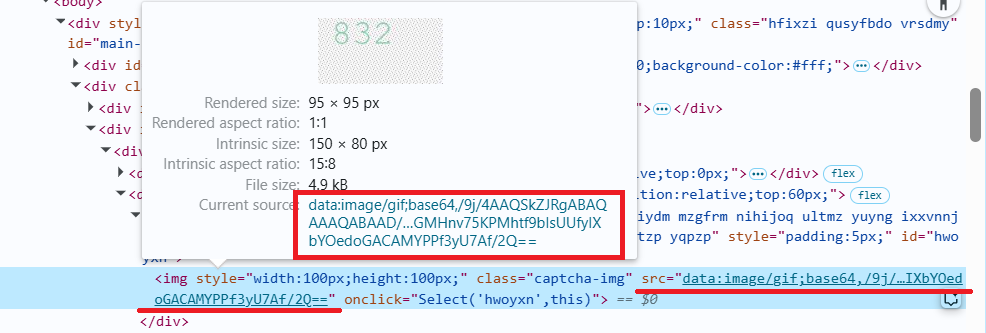
How to get Base64
Images on pages can be represented either as a URL or already encoded in Base64 format. To find the required value, right-click the captcha image, select Inspect, and carefully examine the Elements section or network requests — there you can find either the image URL or the encoded content.
- Open your website where the captcha is displayed in the browser.
- Right-click the captcha element and select Inspect.
Use the SDK library
- JavaScript / TypeScript
- Python
- C#
Show code (for browser)
// https://github.com/CapMonsterCloud/capmonster-nodejs-captcha-solver

import {
  CapMonsterCloudClientFactory,
  ClientOptions,
  ComplexImageTaskRecognitionRequest
} from "@zennolab_com/capmonstercloud-client";

document.addEventListener("DOMContentLoaded", async () => {

  const API_KEY = "YOUR_API_KEY"; // Specify your CapMonster Cloud API key

  const client = CapMonsterCloudClientFactory.Create(
    new ClientOptions({ clientKey: API_KEY })
  );

  // Proxies are not required for ComplexImageTaskRecognitionRequest
  const blsRequest = new ComplexImageTaskRecognitionRequest({
    imagesBase64: [
      "your_image_1_base64",
      "your_image_2_base64",
      "your_image_3_base64",
      "your_image_4_base64",
      "your_image_5_base64",
      "your_image_6_base64",
      "your_image_7_base64",
      "your_image_8_base64",
      "your_image_9_base64",
    ],
    metaData: {
      Task: "bls_3x3",
      TaskArgument: "123",
    },
  });

  // You can check your balance if necessary
  const balance = await client.getBalance();
  console.log("Balance:", balance);

  const result = await client.Solve(blsRequest);
  console.log("Solution:", result.solution);
});
Show code (Node.js)
// https://github.com/CapMonsterCloud/capmonster-nodejs-captcha-solver

const {
  CapMonsterCloudClientFactory,
  ClientOptions,
  ComplexImageTaskRecognitionRequest,
} = require("@zennolab_com/capmonstercloud-client");

const API_KEY = "YOUR_API_KEY"; // Specify your CapMonster Cloud API key

async function solveBls3x3() {
  const client = CapMonsterCloudClientFactory.Create(
    new ClientOptions({ clientKey: API_KEY }),
  );
  // Proxies are not required for ComplexImageTaskRecognitionRequest
  const blsRequest = new ComplexImageTaskRecognitionRequest({
    imagesBase64: [
      "your_image_1_base64",
      "your_image_2_base64",
      "your_image_3_base64",
      "your_image_4_base64",
      "your_image_5_base64",
      "your_image_6_base64",
      "your_image_7_base64",
      "your_image_8_base64",
      "your_image_9_base64",
    ],
    metaData: {
      Task: "bls_3x3",
      TaskArgument: "123",
    },
  });

  // You can check your balance if necessary
  const balance = await client.getBalance();
  console.log("Balance:", balance);

  const result = await client.Solve(blsRequest);
  console.log("Solution:", result.solution);
}

solveBls3x3().catch(console.error);
Show code
# https://github.com/CapMonsterCloud/capmonster-python-captcha-solver

import asyncio

from capmonstercloudclient import CapMonsterClient, ClientOptions
from capmonstercloudclient.requests import RecognitionComplexImageTaskRequest

API_KEY = "YOUR_API_KEY"  # Specify your CapMonster Cloud API key


async def solve_bls_3x3():
    client = CapMonsterClient(
        options=ClientOptions(api_key=API_KEY)
    )

    # Proxies are not required for RecognitionComplexImageTaskRequest
    bls_request = RecognitionComplexImageTaskRequest(
        imagesBase64=[
            "your_image_1_base64",
            "your_image_2_base64",
            "your_image_3_base64",
            "your_image_4_base64",
            "your_image_5_base64",
            "your_image_6_base64",
            "your_image_7_base64",
            "your_image_8_base64",
            "your_image_9_base64",
        ],
        metadata={
            "Task": "bls_3x3",
            "TaskArgument": "123",
        },
    )

    # You can check your balance if necessary
    balance = await client.get_balance()
    print("Balance:", balance)

    result = await client.solve_captcha(bls_request)
    print("Solution:", result)


asyncio.run(solve_bls_3x3())
Show code
// https://github.com/CapMonsterCloud/capmonster-dotnet-captcha-solver

using System;
using System.Threading.Tasks;
using Newtonsoft.Json;
using Zennolab.CapMonsterCloud;
using Zennolab.CapMonsterCloud.Requests;

class Program
{
    static async Task Main(string[] args)
    {
        const string API_KEY = "YOUR_API_KEY"; // Specify your CapMonster Cloud API key

        var clientOptions = new ClientOptions
        {
            ClientKey = API_KEY
        };

        var cmCloudClient = CapMonsterCloudClientFactory.Create(clientOptions);

        // Proxies are not required for RecognitionComplexImageTaskRequest
        var blsRequest = new RecognitionComplexImageTaskRequest
        {
            ImagesBase64 = new[]
            {
                "your_image_1_base64",
                "your_image_2_base64",
                "your_image_3_base64",
                "your_image_4_base64",
                "your_image_5_base64",
                "your_image_6_base64",
                "your_image_7_base64",
                "your_image_8_base64",
                "your_image_9_base64"
            },

            Metadata = new RecognitionComplexImageTaskRequest.RecognitionMetadata
            {
                Task = "bls_3x3",
                TaskArgument = "123"
            }
        };

        // You can check your balance if necessary
        var balance = await cmCloudClient.GetBalanceAsync();
        Console.WriteLine("Balance: " + balance);

        var result = await cmCloudClient.SolveAsync(blsRequest);

        Console.WriteLine("Solution:");
        Console.WriteLine(
            JsonConvert.SerializeObject(
                result.Solution,
                Formatting.Indented
            )
        );
    }
}