ImageToText
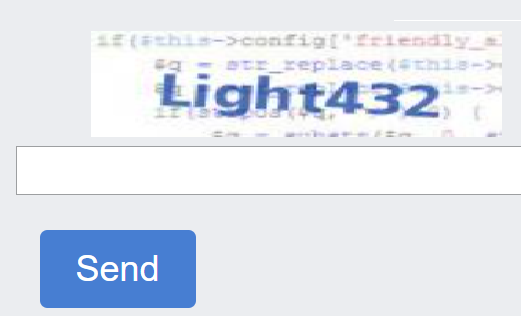
ImageToText is a task type for recognizing text CAPTCHAs provided as images.
Proxy servers are not required for this task.
Request parameters
IMPORTANT: retrieve the Base64 image immediately before creating the task to avoid solving errors (see the example below for obtaining a CAPTCHA image in Base64 format).
type<string>requiredImageToTextTask
body<string>requiredCAPTCHA image encoded in Base64. Send the value as a single line without line breaks.
capMonsterModule<string>optionalName of the module used to recognize the CAPTCHA.
Examples: yandex, special.
For the list of available modules and an alternative way to pass the module name, see Passing the module name.
recognizingThreshold<integer>optionalMinimum confidence threshold for the recognition result. Allowed values: from 0 to 100.
If the system confidence is below the specified value, the task ends with the ERROR_CAPTCHA_UNSOLVABLE error and no charge is applied.
For details, see Recognition confidence threshold.
case<boolean>optionalSpecifies whether character case must be considered during recognition. Possible values: true, false.
numeric<integer>optionalSpecifies whether the CAPTCHA contains digits only.
0 — the CAPTCHA may contain other characters;
1 — the CAPTCHA contains digits only.
math<boolean>optionalSpecifies whether the mathematical operation shown in the image must be calculated.
false — no mathematical operation is required;
true — calculate the expression. For example, 2 + 6 returns 8.
Important: Do not use the math: true parameter for the captcha_math module.
Base64 is a way to represent binary data in text format.
Below is an example of obtaining a CAPTCHA image in Base64 format using the console in Developer Tools:
const captchaUrl = 'https://example.com/captcha.jpg';

function loadAndEncodeCaptchaToBase64(url) {
    fetch(url)
        .then(response => response.blob())
        .then(blob => {
            const reader = new FileReader();
            reader.readAsDataURL(blob);

            reader.onloadend = function() {
                const base64Data = reader.result;
                console.log('Base64 Encoded Captcha:', base64Data);

                          };
        })
        .catch(error => {
            console.error('Error occurred while loading or encoding the captcha:', error);
        });
}

loadAndEncodeCaptchaToBase64(captchaUrl);
Create task method
https://api.capmonster.cloud/createTask
Request example
{
  "clientKey": "API_KEY",
  "task": {
    "type": "ImageToTextTask",
    "body": "BASE64_BODY_HERE!"
  }
}
Response example
{
  "errorId":0,
  "taskId":407533072
}
Get task result method
Use the getTaskResult method to get the recognition result. Depending on the service load, the result is usually returned within 300 ms to 6 s.
https://api.capmonster.cloud/getTaskResult
Request example
{
  "clientKey":"API_KEY",
  "taskId": 407533072
}
Response example
{
  "errorId": 0,
  "status": "ready",
  "solution": {
    "text": "answer"
  }
}
| Property | Type | Description |
|---|---|---|
| text | String | CAPTCHA solution text |
How to get parameters for task creation
Manually
- Open the page with the CAPTCHA in your browser.
- Open Developer Tools.
base64
Find the CAPTCHA image in the DOM tree. If the image is already represented in Base64 format, its value will be specified in the element attribute:

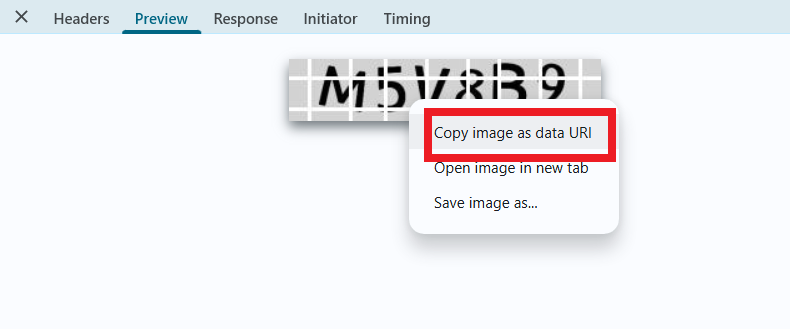
If the image is loaded from a separate URL, open the Network tab, find the corresponding request, right-click it, and select Copy image as data URI. The Base64-encoded image will be copied to the clipboard.
Automatically
The CAPTCHA image can be obtained programmatically through a browser (including a headless browser such as Playwright) or directly from an HTTP request.
Retrieve the image immediately before creating the task because the CAPTCHA content may change.
The examples below demonstrate the general approach to obtaining a CAPTCHA image. The exact implementation depends on the website structure, HTML elements, and selectors used.
- JavaScript
- Python
- C#
Show code (for browser)
(async () => {
  const img = document.querySelector('img'); // Example selector

  const imageUrl = img.src;

  const response = await fetch(imageUrl);

  if (!response.ok) {
    throw new Error("Failed to load image");
  }

  const buffer = await response.arrayBuffer();

  // Convert binary data to base64
  const base64Image = btoa(String.fromCharCode(...new Uint8Array(buffer)));

  console.log(base64Image);
})();
Show code (Node.js)
(async () => {
  const imageUrl = "https://example/img/.jpg"; // Image URL

  const response = await fetch(imageUrl);

  if (!response.ok) {
    throw new Error("Failed to load image");
  }

  const buffer = await response.arrayBuffer();

  // Convert data to base64
  const base64Image = Buffer.from(buffer).toString("base64");

  console.log(base64Image);
})();
Show code
import requests
import base64

# Image URL
image_url = "https://example/img.jpg"

response = requests.get(image_url)

if response.status_code == 200:
    # Convert image binary data to base64
    base64_image = base64.b64encode(response.content).decode('utf-8')

    print(base64_image)
else:
    print("Failed to load image")
Show code
using System;
using System.Net.Http;
using System.Threading.Tasks;

class Program
{
    static async Task Main(string[] args)
    {
        // Image URL
        string imageUrl = "https://example/img.jpg";

        using (HttpClient client = new HttpClient())
        {
            try
            {
                byte[] imageBytes = await client.GetByteArrayAsync(imageUrl);

                // Convert image binary data to base64
                string base64Image = Convert.ToBase64String(imageBytes);

                Console.WriteLine(base64Image);
            }
            catch (Exception ex)
            {
                Console.WriteLine("Failed to load image: " + ex.Message);
            }
        }
    }
}
Use the SDK library
- JavaScript / TypeScript
- Python
- C#
Show code (for browser)
// https://github.com/CapMonsterCloud/capmonster-nodejs-captcha-solver

import {
  CapMonsterCloudClientFactory,
  ClientOptions,
  ImageToTextRequest,
  // Import CapMonsterModules if you need a specific module
  CapMonsterModules
} from "@zennolab_com/capmonstercloud-client";

document.addEventListener("DOMContentLoaded", async () => {

  const API_KEY = "YOUR_API_KEY"; // Specify your CapMonster Cloud API key

  const client = CapMonsterCloudClientFactory.Create(
    new ClientOptions({ clientKey: API_KEY })
  );

  // Proxies are not required for ImageToTextRequest
  const imageToTextRequest = new ImageToTextRequest({
    body: "your_image_base64",

    // Specify additional parameters if necessary
    CapMonsterModule: CapMonsterModules.Yandex,
    recognizingThreshold: 80,
    Case: true,
    numeric: 0,
    math: false,
  });

  // You can check your balance if necessary
  const balance = await client.getBalance();
  console.log("Balance:", balance);

  const result = await client.Solve(imageToTextRequest);
  console.log("Solution:", result.solution);
});
Show code (Node.js)
// https://github.com/CapMonsterCloud/capmonster-nodejs-captcha-solver

const {
  CapMonsterCloudClientFactory,
  ClientOptions,
  ImageToTextRequest,
  // Import CapMonsterModules if you need a specific module
  CapMonsterModules,
} = require("@zennolab_com/capmonstercloud-client");

const API_KEY = "YOUR_API_KEY"; // Specify your CapMonster Cloud API key

async function solveImageToText() {
  const client = CapMonsterCloudClientFactory.Create(
    new ClientOptions({ clientKey: API_KEY }),
  );

  // Proxies are not required for ImageToTextRequest
  const imageToTextRequest = new ImageToTextRequest({
    body: "your_image_base64",
    // Specify additional parameters if necessary
    CapMonsterModule: CapMonsterModules.Yandex,
    recognizingThreshold: 80,
    Case: true,
    numeric: 0,
    math: false,
  });

  // You can check your balance if necessary
  const balance = await client.getBalance();
  console.log("Balance:", balance);

  const result = await client.Solve(imageToTextRequest);
  console.log("Solution:", result.solution);
}

solveImageToText().catch(console.error);
Show code
# https://github.com/CapMonsterCloud/capmonster-python-captcha-solver

import asyncio
import base64

from capmonstercloudclient import CapMonsterClient, ClientOptions
from capmonstercloudclient.requests import ImageToTextRequest
# Import TextModules if you need a specific module
from capmonstercloudclient.requests.enums import TextModules

API_KEY = "YOUR_API_KEY"  # Specify your CapMonster Cloud API key


async def solve_image_to_text():
    client = CapMonsterClient(
        options=ClientOptions(api_key=API_KEY)
    )

    # Proxies are not required for ImageToTextRequest
    base64_body = "your_image_base64"

    image_to_text_request = ImageToTextRequest(
        image_bytes=base64.b64decode(base64_body),

        # Specify additional parameters if necessary
        module_name=TextModules.yandex_captcha.value,
        threshold=80,
        case=True,
        numeric=0,
        math=False,
    )

    # You can check your balance if necessary
    balance = await client.get_balance()
    print("Balance:", balance)

    result = await client.solve_captcha(image_to_text_request)
    print("Solution:", result)


asyncio.run(solve_image_to_text())
Show code
// https://github.com/CapMonsterCloud/capmonster-dotnet-captcha-solver

using System;
using System.Threading.Tasks;
using Zennolab.CapMonsterCloud;
using Zennolab.CapMonsterCloud.Requests;

class Program
{
    static async Task Main(string[] args)
    {
        // Specify your CapMonster Cloud API key
        var clientOptions = new ClientOptions
        {
            ClientKey = "YOUR_API_KEY"
        };

        var cmCloudClient = CapMonsterCloudClientFactory.Create(clientOptions);

        // Proxies are not required for ImageToTextRequest
        var imageToTextRequest = new ImageToTextRequest
        {
            Body = "your_image_base64",

            // Specify additional parameters if necessary
            CapMonsterModule = "Yandex",
            RecognizingThreshold = 80,
            CaseSensitive = true,
            Numeric = false,
            Math = false
        };

        // You can check your balance if necessary
        var balance = await cmCloudClient.GetBalanceAsync();
        Console.WriteLine("Balance: " + balance);

        var imageToTextResult =
            await cmCloudClient.SolveAsync(imageToTextRequest);

        Console.WriteLine("Solution: " + imageToTextResult.Solution.Value);
    }
}