shein
Using proxy servers is not required for this task.
The request must contain a single image in base64 format.
Request parameters
IMPORTANT: obtain the base64 image directly before creating the task to avoid errors during solving (see section How to get base64).
type<string>requiredComplexImageTask
class<string>requiredrecognition
imagesBase64<array>requiredBase64-encoded image (wrapped in an array, without the data:image/png;base64, prefix).
Task (inside metadata)<string>requiredTask name: "shein"
Create task method
https://api.capmonster.cloud/createTask
Request example
{
  "clientKey": "API_KEY",
  "task": {
    "type": "ComplexImageTask",
    "class": "recognition",
    "imagesBase64": [
      "base64"
    ],
    "metadata": {
      "Task": "shein"
    }
  }
}
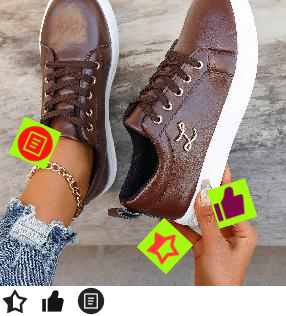
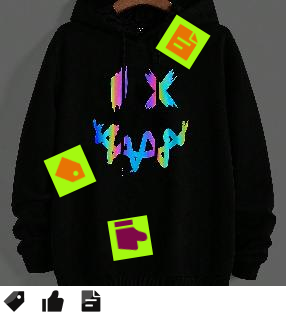
Example task:
Response example
{
  "errorId":0,
  "taskId":143998457
}
Get task result method
https://api.capmonster.cloud/getTaskResult
Request example
{
  "clientKey":"API_KEY",
  "taskId": 143998457
}
Response example:
The response contains the coordinates that must be clicked in a specific order.
{
  "solution": {
    "answer": [
      { "X": 69.0, "Y": 201.954889 },
      { "X": 128.0, "Y": 281.54887104 },
      { "X": 181.00000776, "Y": 49.89473468 }
    ],
    "metadata": {
      "AnswerType": "Coordinate"
    }
  },
  "cost": 0.0003,
  "status": "ready",
  "errorId": 0,
  "errorCode": null,
  "errorDescription": null
}
How to get Base64
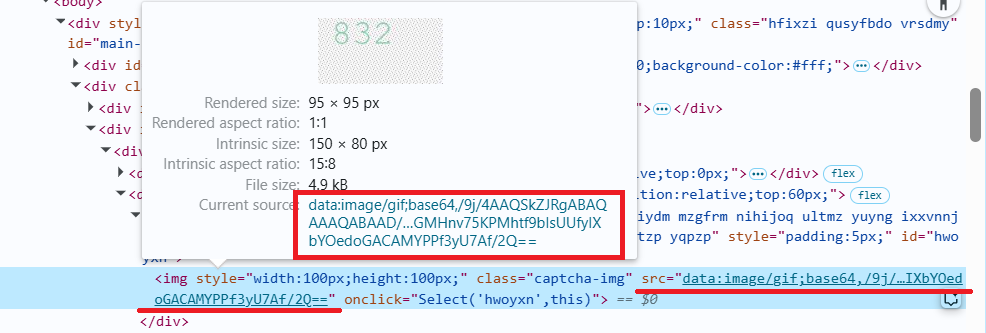
Images on pages can be represented either as a URL or already encoded in Base64 format. To find the required value, right-click the captcha image, select Inspect, and carefully examine the Elements section or network requests — there you can find either the image URL or the encoded content.
- Open your website where the captcha is displayed in the browser.
- Right-click the captcha element and select Inspect.
Use the SDK library
- JavaScript / TypeScript
- Python
- C#
Show code (for browser)
// https://github.com/CapMonsterCloud/capmonster-nodejs-captcha-solver

import {
  CapMonsterCloudClientFactory,
  ClientOptions,
  ComplexImageTaskRecognitionRequest
} from "@zennolab_com/capmonstercloud-client";

document.addEventListener("DOMContentLoaded", async () => {

  const API_KEY = "YOUR_API_KEY"; // Specify your CapMonster Cloud API key

  const client = CapMonsterCloudClientFactory.Create(
    new ClientOptions({ clientKey: API_KEY })
  );

  // Proxies are not required for ComplexImageTaskRecognitionRequest
  const sheinRequest = new ComplexImageTaskRecognitionRequest({
    imagesBase64: ["your_image_base64"],
    metaData: {
      Task: "shein",
    },
  });

  // You can check your balance if necessary
  const balance = await client.getBalance();
  console.log("Balance:", balance);

  const result = await client.Solve(sheinRequest);
  console.log("Solution:", result.solution);
});
Show code (Node.js)
// https://github.com/CapMonsterCloud/capmonster-nodejs-captcha-solver

const {
  CapMonsterCloudClientFactory,
  ClientOptions,
  ComplexImageTaskRecognitionRequest,
} = require("@zennolab_com/capmonstercloud-client");

const API_KEY = "YOUR_API_KEY"; // Specify your CapMonster Cloud API key

async function solveShein() {
  const client = CapMonsterCloudClientFactory.Create(
    new ClientOptions({ clientKey: API_KEY }),
  );
  // Proxies are not required for ComplexImageTaskRecognitionRequest
  const sheinRequest = new ComplexImageTaskRecognitionRequest({
    imagesBase64: ["your_image_base64"],
    metaData: {
      Task: "shein",
    },
  });

  // You can check your balance if necessary
  const balance = await client.getBalance();
  console.log("Balance:", balance);

  const result = await client.Solve(sheinRequest);
  console.log("Solution:", result.solution);
}

solveShein().catch(console.error);
Show code
# https://github.com/CapMonsterCloud/capmonster-python-captcha-solver

import asyncio

from capmonstercloudclient import CapMonsterClient, ClientOptions
from capmonstercloudclient.requests import RecognitionComplexImageTaskRequest

API_KEY = "YOUR_API_KEY"  # Specify your CapMonster Cloud API key


async def solve_shein():
    client = CapMonsterClient(
        options=ClientOptions(api_key=API_KEY)
    )

    # Proxies are not required for RecognitionComplexImageTaskRequest
    shein_request = RecognitionComplexImageTaskRequest(
        imagesBase64=["your_image_base64"],
        metadata={
            "Task": "shein",
        },
    )

    # You can check your balance if necessary
    balance = await client.get_balance()
    print("Balance:", balance)

    result = await client.solve_captcha(shein_request)
    print("Solution:", result)


asyncio.run(solve_shein())
Show code
// https://github.com/CapMonsterCloud/capmonster-dotnet-captcha-solver

using System;
using System.Threading.Tasks;
using Newtonsoft.Json;
using Zennolab.CapMonsterCloud;
using Zennolab.CapMonsterCloud.Requests;

class Program
{
    static async Task Main(string[] args)
    {
        const string API_KEY = "YOUR_API_KEY"; // Specify your CapMonster Cloud API key

        var clientOptions = new ClientOptions
        {
            ClientKey = API_KEY
        };

        var cmCloudClient = CapMonsterCloudClientFactory.Create(clientOptions);

        // Proxies are not required for RecognitionComplexImageTaskRequest
        var sheinRequest = new RecognitionComplexImageTaskRequest
        {
            ImagesBase64 = new[]
            {
                "your_image_base64"
            },

            Metadata = new RecognitionComplexImageTaskRequest.RecognitionMetadata
            {
                Task = "shein"
            }
        };

        // You can check your balance if necessary
        var balance = await cmCloudClient.GetBalanceAsync();
        Console.WriteLine("Balance: " + balance);

        var result = await cmCloudClient.SolveAsync(sheinRequest);

        Console.WriteLine("Solution:");
        Console.WriteLine(
            JsonConvert.SerializeObject(
                result.Solution,
                Formatting.Indented
            )
        );
    }
}