Getting CAPTCHA parameters in the Firefox extension
The CapMonster Cloud extension displays the parameters of the CAPTCHA detected on the page. You can use this data as a template when creating the task object for submitting a task through the CapMonster Cloud API.
This feature is intended only to demonstrate the request format. Do not copy all parameter values from the extension, as some of them may change each time the CAPTCHA page is loaded. Before submitting a task, make sure you use the current parameter values (for details on how to obtain all required parameters, see the documentation for the corresponding CAPTCHA type).
How to view CAPTCHA parameters
Before you begin, make sure that:
- the CapMonster Cloud extension is installed and enabled;
- a valid API key is specified in the extension settings;
- your account has a sufficient balance;
- the required CAPTCHA type is enabled for automatic solving.
To view the parameters:
-
Open the page containing the CAPTCHA.
-
Open Developer Tools.
-
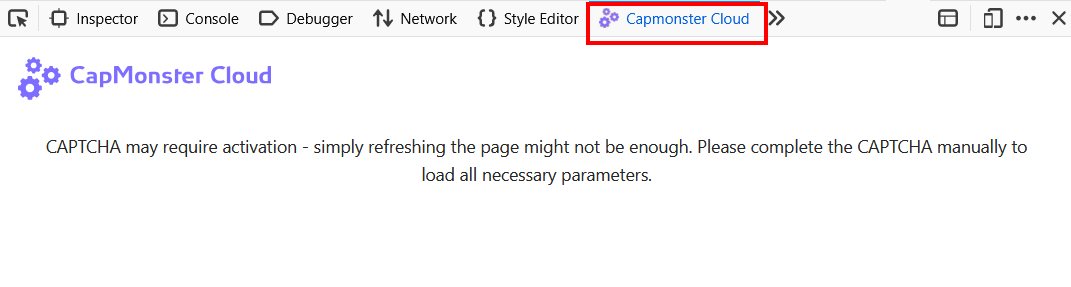
Go to the CapMonster Cloud tab:
-
Reload the page.
The detected CAPTCHA parameters will be displayed automatically. If no data is displayed, complete the CAPTCHA manually — after a successful verification, the parameters will become available.
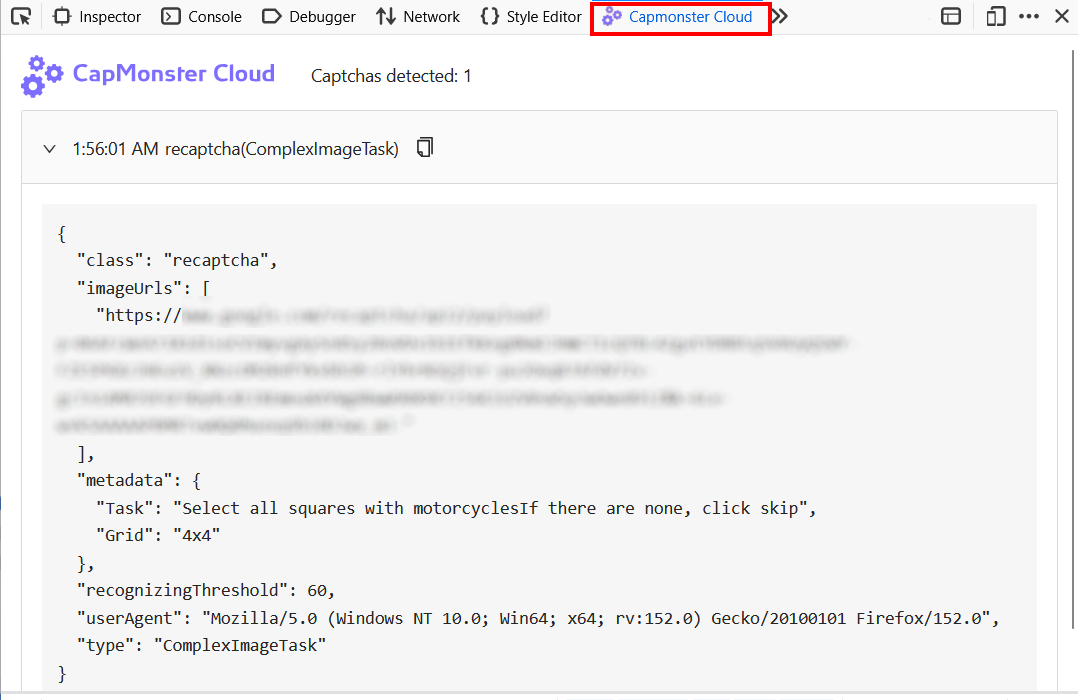
To copy the parameters, click the copy icon next to the detected CAPTCHA name.
The tab displays the contents of the task object that the extension sends to CapMonster Cloud.
If you are submitting requests through the API manually, place this data into the task field and add your clientKey.
Example of a complete request for the selected CAPTCHA type (in this case, reCAPTCHA v2 solved using the Click method):
{
  "clientKey": "API_KEY",
  "task": {
    "class": "recaptcha",
    "imageUrls": ["IMAGE_URL"],
    "metadata": {
      "Task": "Select all squares with motorcycles",
      "Grid": "3x3"
    },
    "recognizingThreshold": 60,
    "userAgent": "userAgentPlaceholder",
    "type": "ComplexImageTask"
  }
}
For API requests, use the current userAgent supported by CapMonster Cloud.
You can always get the latest value at: https://capmonster.cloud/api/useragent/actual
Supported CAPTCHA types and parameters
| CAPTCHA type | Displayed parameters |
|---|---|
| reCAPTCHA V2 (Click) | class, imageUrls, Task inside metadata, Grid inside metadata, recognizingThreshold, userAgent, type |
| reCAPTCHA V2 (Token) | websiteURL, websiteKey, userAgent, type |
| reCAPTCHA V2 Invisible | class, imageUrls, Task inside metadata, Grid inside metadata, recognizingThreshold, userAgent, type |
| reCAPTCHA V2 Enterprise (Click) | class, imageUrls, Task inside metadata, Grid inside metadata, recognizingThreshold, userAgent, type |
| reCAPTCHA V2 Enterprise (Token) | websiteURL, websiteKey, userAgent, recaptchaDataSValue, type |
| reCAPTCHA V3 | websiteURL, websiteKey, pageAction, minScore, type |
| GeeTest v3 | websiteURL, gt, challenge, userAgent, type |
| GeeTest v4 | websiteURL, gt (captcha_id), userAgent, version, type |
| Cloudflare Turnstile | websiteURL, websiteKey, userAgent, type |
| Cloudflare Challenge | websiteURL, websiteKey, userAgent, pageAction, data, pageData, cloudflareTaskType, type |
| ImageToText | body in base64 format, type |
| BLS | class, imagesBase64, Task inside metadata, TaskArgument inside metadata, type |
| Binance | websiteURL, websiteKey, validateId, userAgent, type |
The displayed parameters depend on the CAPTCHA type and its implementation on the target website.