Browser HTTP Headers
When solving CAPTCHAs and sending requests to a target website, the server may take HTTP headers, cookies, and other browser session parameters into account. If they are missing or inconsistent, the server may reject the request, redirect the user, or require another verification.
Within a single session, it is recommended to keep the following values unchanged:
User-Agent;- Client Hints;
- cookies;
- browser language;
- proxy, if used;
- request parameters.
Use the current User-Agent supported by CapMonster Cloud:
GET https://capmonster.cloud/api/useragent/actual
Send it when opening the page, creating a task, and using the CAPTCHA solution result.
Header purpose
| Header | Purpose |
|---|---|
User-Agent | Information about the browser and operating system |
Accept | Accepted response formats |
Accept-Language | Preferred languages |
Accept-Encoding | Supported compression methods |
Referer | URL of the page from which the navigation was made |
Origin | Request origin used in POST and CORS requests |
Cookie | Cookies from the current session |
Sec-CH-UA | Browser brand and version |
Sec-CH-UA-Mobile | Mobile or desktop mode |
Sec-CH-UA-Platform | Browser platform |
Sec-Fetch-Site | Relationship between the request origin and the target resource |
Sec-Fetch-Mode | Request mode |
Sec-Fetch-Dest | Requested resource type |
Which headers to send
There is no universal set of headers: it depends on the website and request type.
The following headers are commonly used:
User-Agent;Accept;Accept-Language;- Client Hints;
- request-specific
Sec-Fetch-*headers.
Send Cookie, Referer, and Origin only when they are present in the original browser request or required for the current session.
Do not set the following headers manually:
Host;Content-Length;Transfer-Encoding;Content-Encoding.
These values are usually generated automatically by the HTTP client.
Session consistency
Within a single session, do not change the following values unless necessary:
User-Agent;Sec-CH-UA;Sec-CH-UA-Mobile;Sec-CH-UA-Platform;- language;
- proxy.
The User-Agent and Client Hints must describe the same browser.
Incorrect example:
User-Agent: Chrome/150
Sec-CH-UA: "Google Chrome";v="140"
Correct example:
User-Agent: Chrome/150
Sec-CH-UA: "Chromium";v="150", "Google Chrome";v="150", "Not:A-Brand";v="99"
Cookies must also be obtained from the same session in which the request is sent.
Handling redirects
When following redirects, keep the main session parameters unchanged:
User-Agent;- Client Hints;
- cookies;
- language;
- proxy.
Context-dependent headers may change:
Referermust correspond to the previous page;Sec-Fetch-Sitedepends on the current domain;- cookies must be updated after receiving
Set-Cookie; Hostmust be generated by the HTTP client for the new URL.
Do not manually send cookies or authorization headers to another domain.
Obtaining headers
Using Developer Tools
- Open the page in a browser.
- Press F12 and open the Network tab.
- Perform the required action or reload the page.
- Select the relevant request.
- On the Headers tab, copy the values from the Request Headers section.
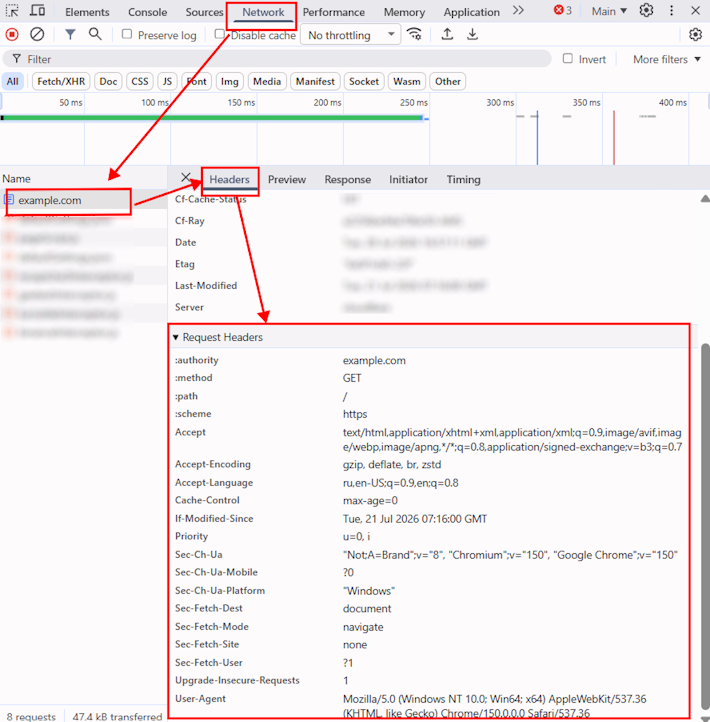
You can also copy the request using Copy as cURL or Copy as fetch.
Before publishing examples, remove real cookies, authorization tokens, and other sensitive data.
From a browser session
When using browser automation, obtain headers and cookies from the current session. Do not combine data from different browser contexts.
You can use:
- Playwright — request events, the
request.headers()method, or HAR recording. - Puppeteer — network request handlers or Chrome DevTools Protocol.
- Selenium — Chrome DevTools Protocol or additional network tools.
- ZennoPoster — network requests from the current browser session.
- HAR file — request data, including headers, cookies, and the request body.
- Proxy analyzer — inspection of HTTP(S) traffic and the headers that were actually sent.
- cURL — reproduction and verification of a request copied from DevTools using Copy as cURL.
It is recommended to use headers from an active browser session instead of creating them manually.
A website may consider not only HTTP headers but also browser environment parameters, such as screen resolution, time zone, Canvas, WebGL, and other characteristics.
You can use specialized online diagnostic services to check the data transmitted by the browser.
Example header set
For an HTML page request, you can use the following basic set:
User-Agent: userAgentPlaceholder
Accept: text/html,application/xhtml+xml,application/xml;q=0.9,image/avif,image/webp,*/*;q=0.8
Accept-Language: en-US,en;q=0.9
Accept-Encoding: gzip, deflate, br
Upgrade-Insecure-Requests: 1
Sec-Fetch-Dest: document
Sec-Fetch-Mode: navigate
Sec-Fetch-Site: none
Sec-Fetch-User: ?1
Sec-CH-UA: "Chromium";v="155", "Google Chrome";v="155", "Not:A-Brand";v="99"
Sec-CH-UA-Mobile: ?0
Sec-CH-UA-Platform: "Windows"
In JSON format:
{
  "headers": {
    "User-Agent": "userAgentPlaceholder",
    "Accept": "text/html,application/xhtml+xml,application/xml;q=0.9,image/avif,image/webp,*/*;q=0.8",
    "Accept-Language": "en-US,en;q=0.9",
    "Accept-Encoding": "gzip, deflate, br",
    "Upgrade-Insecure-Requests": "1",
    "Sec-Fetch-Dest": "document",
    "Sec-Fetch-Mode": "navigate",
    "Sec-Fetch-Site": "none",
    "Sec-Fetch-User": "?1",
    "Sec-CH-UA": "\"Chromium\";v=\"155\", \"Google Chrome\";v=\"155\", \"Not:A-Brand\";v=\"99\"",
    "Sec-CH-UA-Mobile": "?0",
    "Sec-CH-UA-Platform": "\"Windows\""
  }
}
The values of the Sec-Fetch-* headers depend on the request context. In this example, they are specified for opening the page directly; the values may differ when navigating from another website.
Using headers when solving CAPTCHAs
Keep the browser session parameters unchanged throughout all stages of interaction with the target website:
- Open the page containing the CAPTCHA.
- Obtain the cookies, headers, and parameters of the current session.
- Determine the CAPTCHA parameters, including
websiteURL,websiteKey, and other required values. - Create a task in CapMonster Cloud.
- Get the solution result.
- Send the solution result, such as a token or cookies, to the verification page or target website API within the same session.
Sending the solution result to an HTML page
Use:
- the same
User-Agent; - matching Client Hints;
- cookies from the current session;
- the same browser language;
- the same proxy, if one was used;
RefererandOrigin, if they were present in the original request.
Sending the solution result through an API
Use the headers from the original API request.
Do not add browser navigation headers such as Sec-Fetch-User and Upgrade-Insecure-Requests if they were not present in the original request.
Request sequence
GET /page
        │
        ├─ cookies and HTTP headers
        ├─ CAPTCHA parameters
        │
        ▼
CapMonster Cloud
        │
        ├─ solution result
        │
        ▼
POST /verify
        │
        ├─ cookies from the current session
        ├─ the same User-Agent
        ├─ matching Client Hints
        ├─ current Referer and Origin
        │
        ▼
target website response
Examples of using headers when solving CAPTCHAs and other protection challenges:
Common errors
| Error | What to check |
|---|---|
Only User-Agent is sent | Add the relevant headers from the original request |
| Data from different sessions is used | Obtain headers and cookies from the same browser context |
User-Agent does not match Sec-CH-UA | Align the browser versions and platform |
| Outdated cookies are sent | Obtain the cookies again or process Set-Cookie |
| HTML navigation headers are used for an API request | Use headers from a request of the same type |
Host or Content-Length is set manually | Remove the header so that the HTTP client can generate it automatically |
If the request fails, compare it with the browser request in the Network tab. Check the URL, method, body, cookies, headers, proxy, and final URL after redirects.