Chrome browser extension
Description
With this extension, you can solve CAPTCHA automatically directly in your browser.
The extension is designed for use with Google Chrome.
Automatic installation
It is not recommended to install the extension in Incognito mode or Guest mode.
- Open the Chrome Web Store.
- Click Install.
To get started, click the extension icon to the right of the address bar and go to Settings.
If you cannot install the extension from the Chrome Web Store, follow the manual installation instructions below.
Manual installation
-
Download the extension archive.
-
Extract the downloaded archive into any folder.
ImportantDo not delete the extension folder after installation. Otherwise, Chrome will no longer be able to use the extension.
-
Enter
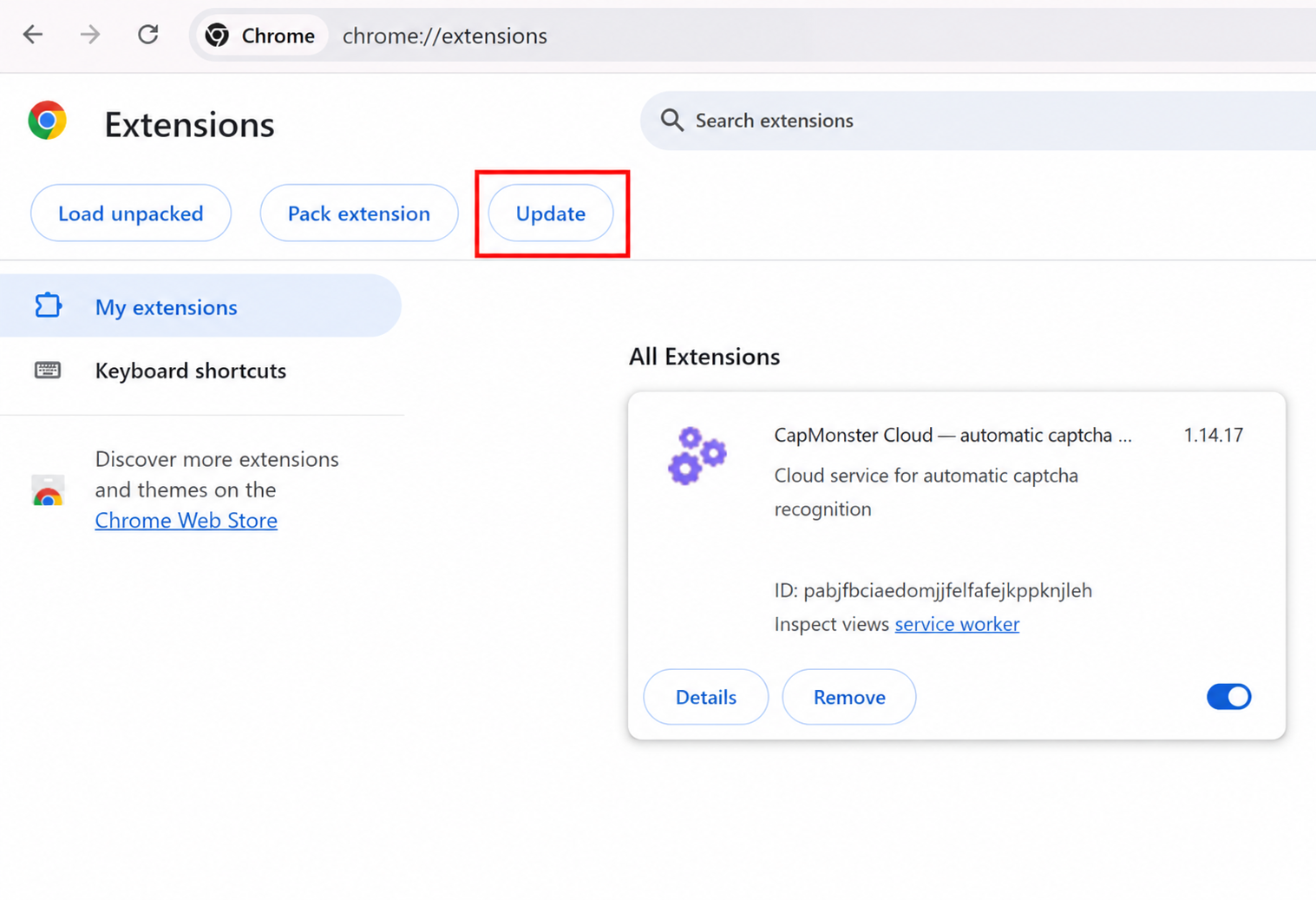
chrome://extensionsin the browser address bar and pressEnter.You can also open the Extensions page in one of the following ways:
-
click
⋮in the upper-right corner →Extensions→Manage Extensions;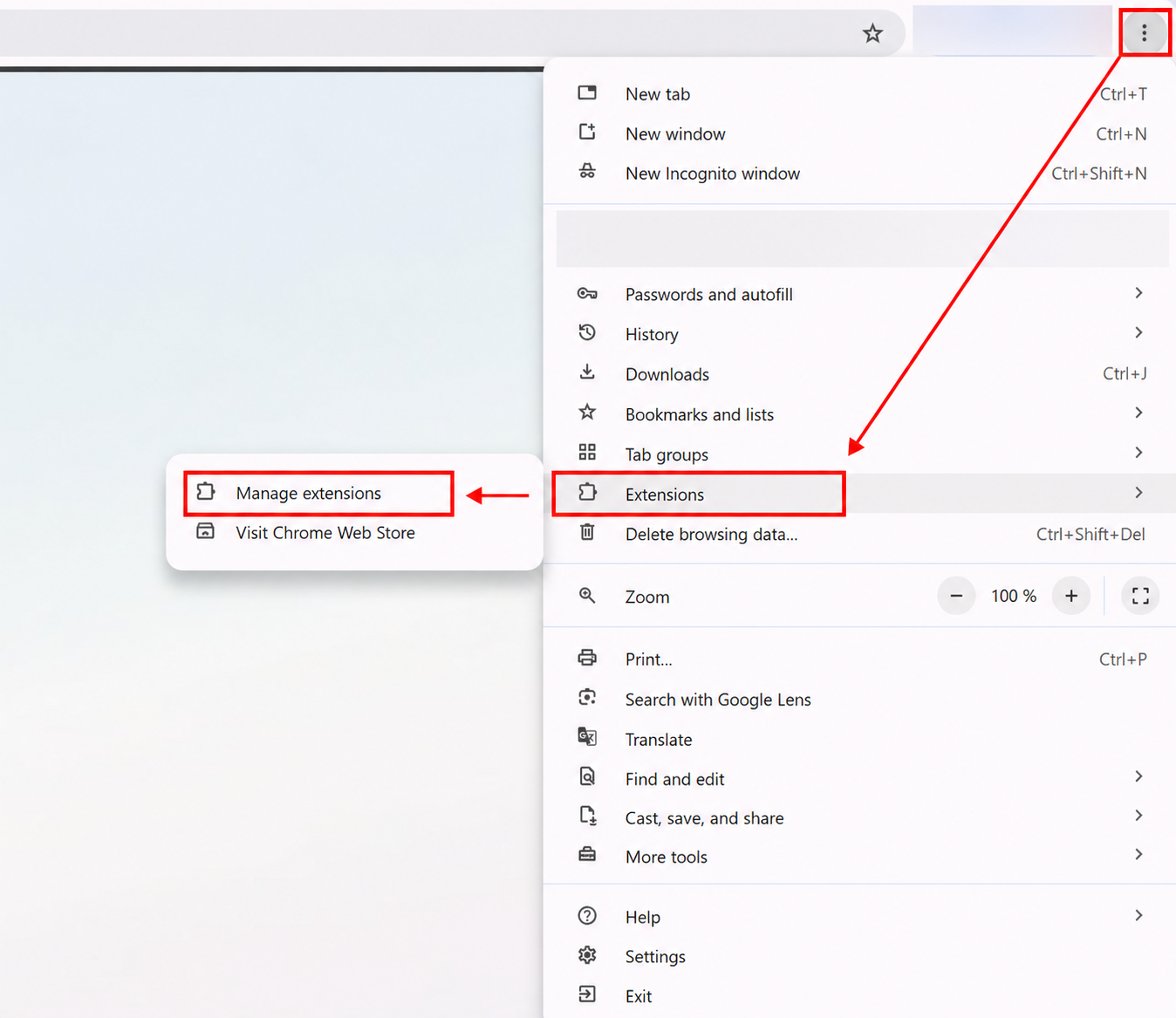
-
open Google Chrome settings and select
Extensionsfrom the left menu.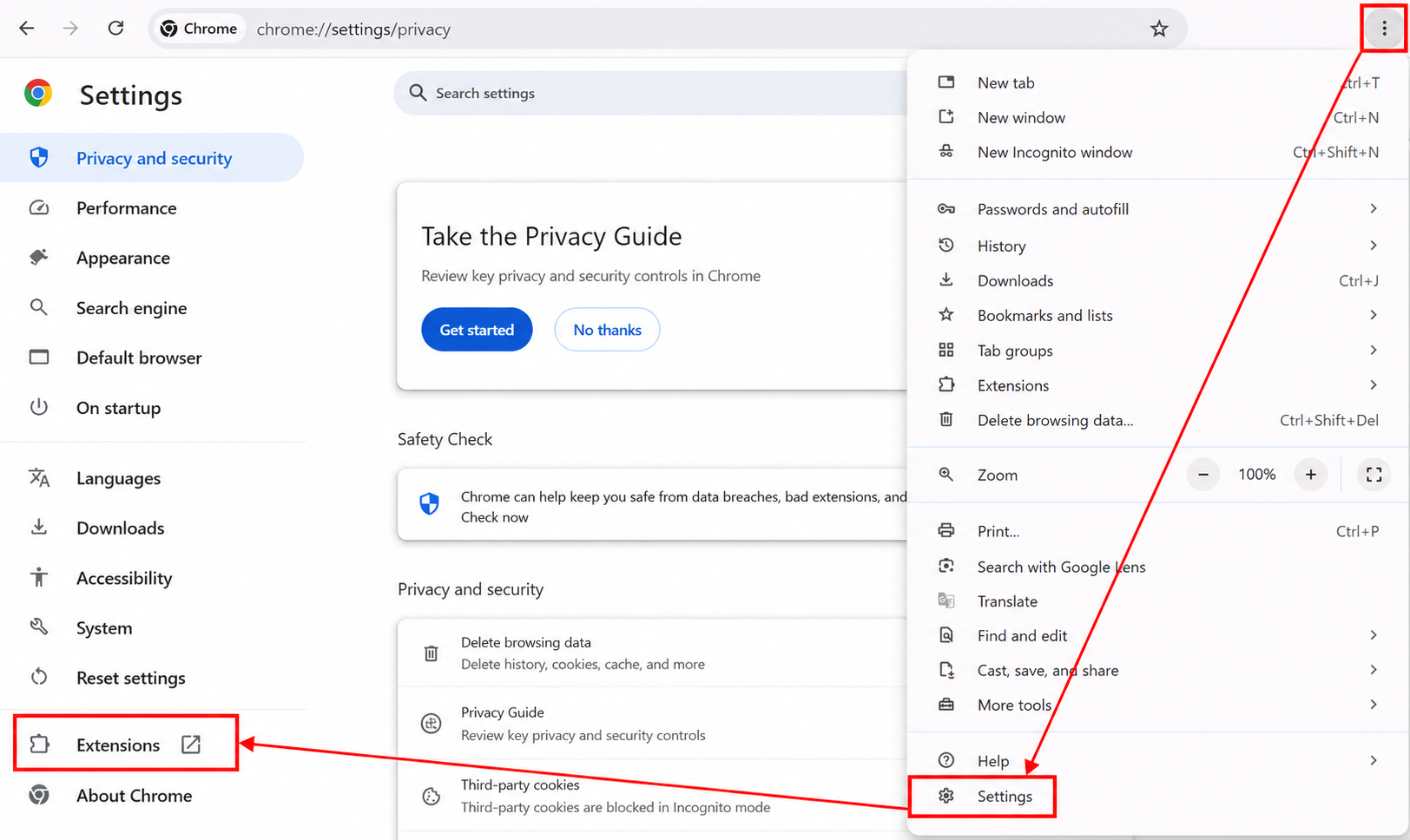
-
-
Enable
Developer mode. -
Click
Load unpackedat the top of the page.
-
Select the folder where you extracted the archive.
-
The extension will appear in the list of installed extensions.
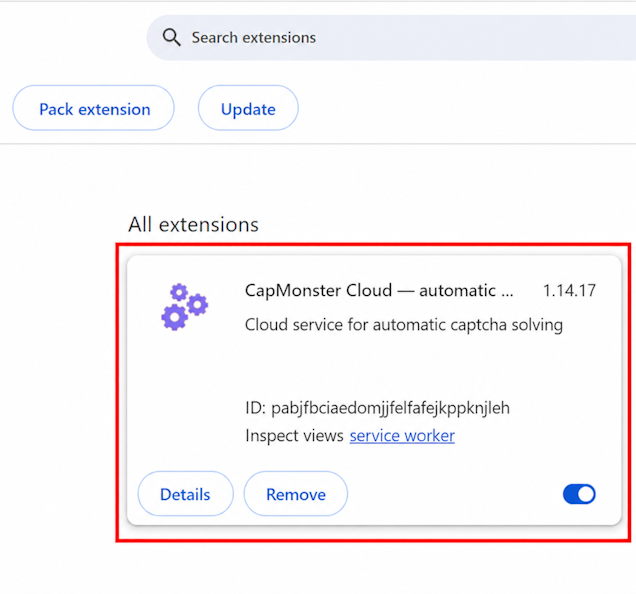
Manual extension update
If you install a new version over an existing one, click Update on the Extensions page after replacing the extension files.
Instructions for opening this page are provided in the manual installation section above.
Settings
How to pin the extension
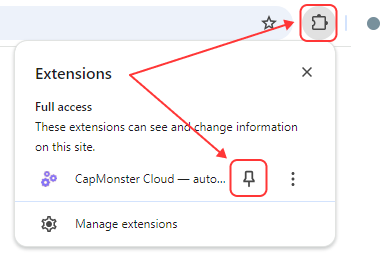
By default, a newly installed extension is hidden. To keep it visible, pin it using the corresponding icon.
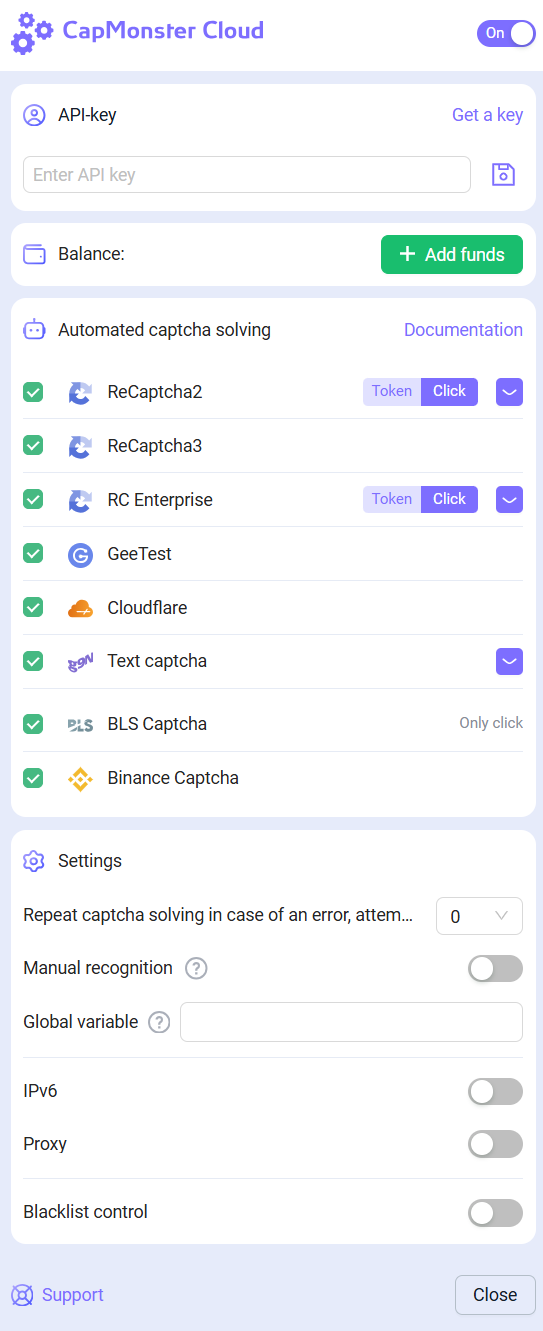
After activating the extension, the following window will open:
API key
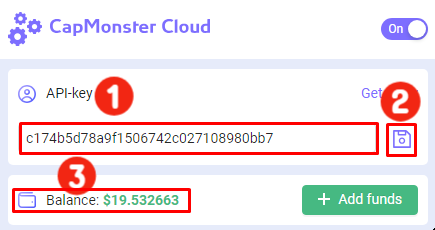
Enter your API key in the corresponding field (1) and click Save (2).
If the key is valid, your current balance (3) will be displayed below.
Automatic CAPTCHA solving
Select the CAPTCHA types that the extension should solve automatically.
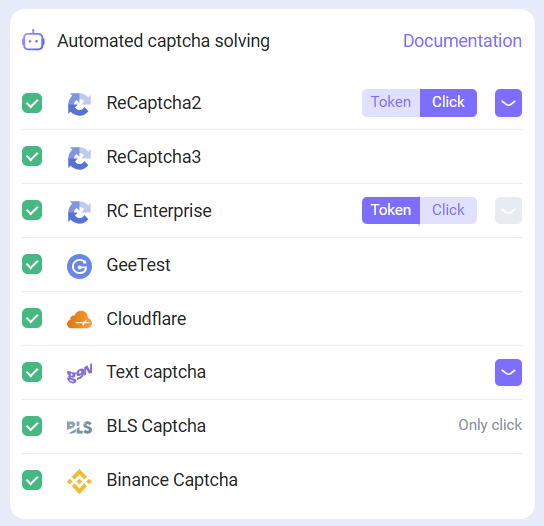
After changing the settings, you may need to reload the page containing the CAPTCHA.
Repeat CAPTCHA solving after an error
If the CAPTCHA cannot be solved on the first attempt, the extension will continue submitting new tasks until the CAPTCHA is solved or the retry limit specified in the settings is reached.
Proxy
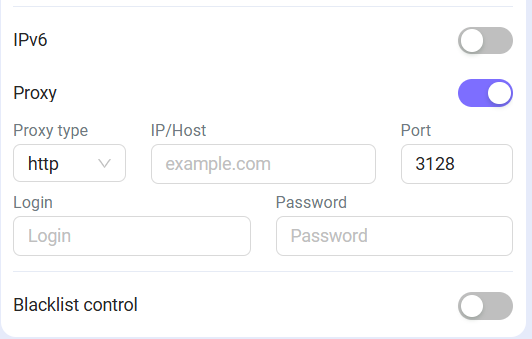
In this section, you can specify a proxy that will be sent together with the recognition task.
The Login and Password fields are optional. The extension also supports IPv6 proxies.
Blacklist management
The blacklist allows you to specify websites where the extension should ignore CAPTCHAs.
After enabling this option, a field for entering websites will appear:
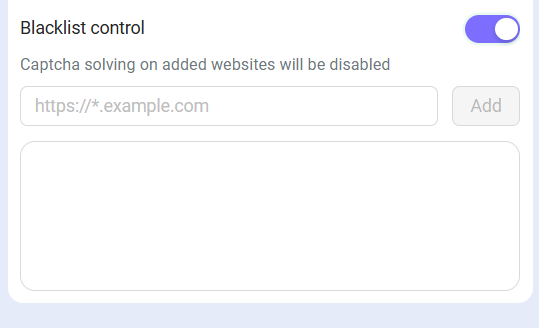
Specify domains together with the protocol: https:// or http://.
You can use the following wildcards:
?— any single character except.;*— any number of any characters.
| Filter | Description |
|---|---|
https://zennolab.com | Prevents the extension from working on https://zennolab.com |
https://*.zennolab.com | Prevents the extension from working on all subdomains of zennolab.com |
https://www.google.* | Prevents the extension from working on Google in all domain zones |
If CAPTCHA solving fails, see the error glossary.
Getting CAPTCHA parameters
In the CapMonster Cloud tab of the browser's Developer Tools, you can view the parameters of the detected CAPTCHA and the contents of the task object that the extension sends to CapMonster Cloud.
For more information, see Parameter mapping in the Chrome extension.